
In an increasingly connected world, the ability to access computers remotely has become a necessity for professionals, businesses, and even casual users. Whether you’re working from home, assisting a friend or client, or managing multiple systems across different locations, TeamViewer offers a robust, user-friendly solution.
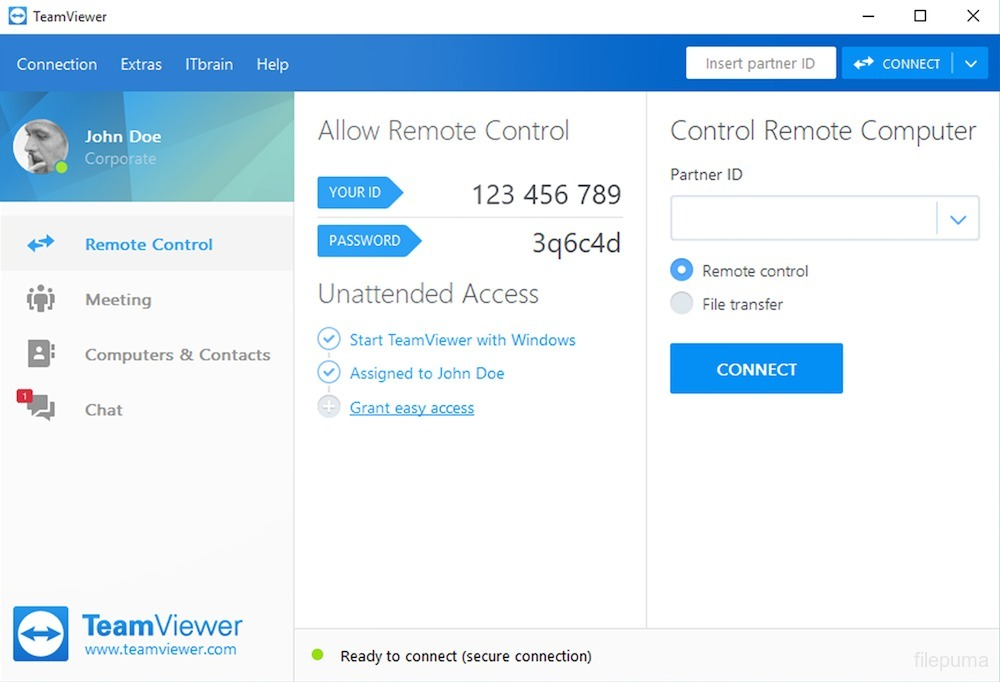
TeamViewer is a remote access and remote control software that allows users to connect to other devices over the internet. With TeamViewer, users can control a remote computer as if they were sitting in front of it, transfer files, host meetings, and provide IT support.
How to Install TeamViewer?
- Download the Software: Visit the official TeamViewer website and download the version suitable for your operating system.
- Run the Installer: Launch the installer and choose between ‘Basic installation’ for personal use or ‘Custom installation’ for commercial or customized needs.
- Accept Terms and Conditions: Follow the on-screen instructions, accept the EULA, and finish the installation process.
- Create an Account (Optional): For managing devices or using advanced features, you can create a free TeamViewer account.
How to Use TeamViewer for Remote Access?
TeamViewer allows you to establish a remote connection between two computers, enabling one user to access and control the other system as if sitting in front of it. By exchanging secure credentials, you can either assist someone remotely or receive help on your own machine, making it ideal for technical support, collaboration, or file sharing.
- Launch TeamViewer: Open the application on both the local (your) and remote (target) devices.
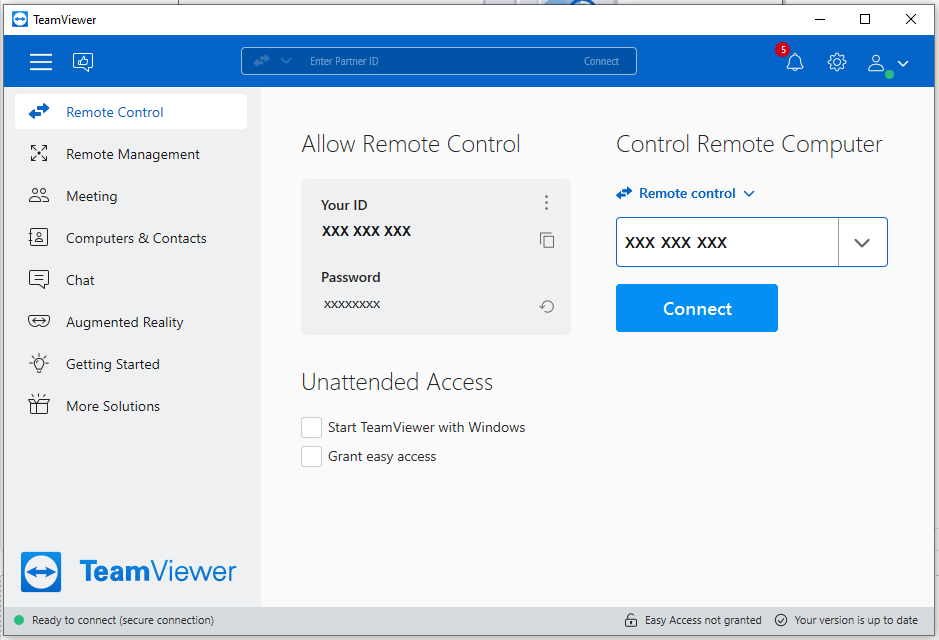
2. Exchange ID and Password : Each TeamViewer installation generates a unique ID and temporary password. On the remote device, share this ID and password with the person who needs to connect.
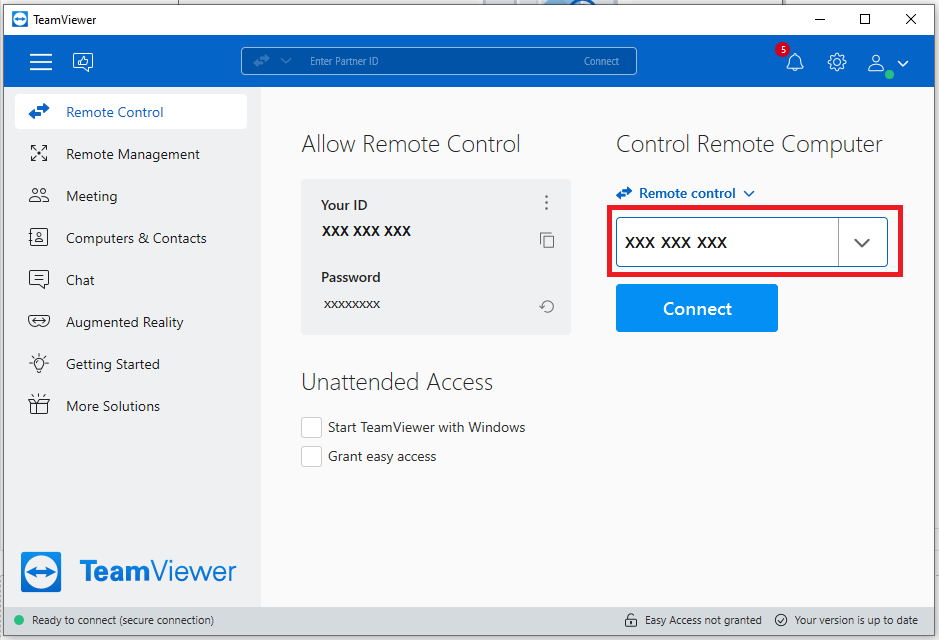
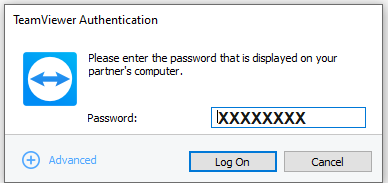
3. Teamviewer will then ask for the password from the remote computer you are trying to connect. Enter the password for the computer you are trying to connect to and click on the Log On button.
4. To enable a remote connection, please share your TeamViewer ID and password with the person who needs to access your computer. Once provided, they will be able to establish a secure connection and remotely control your device.
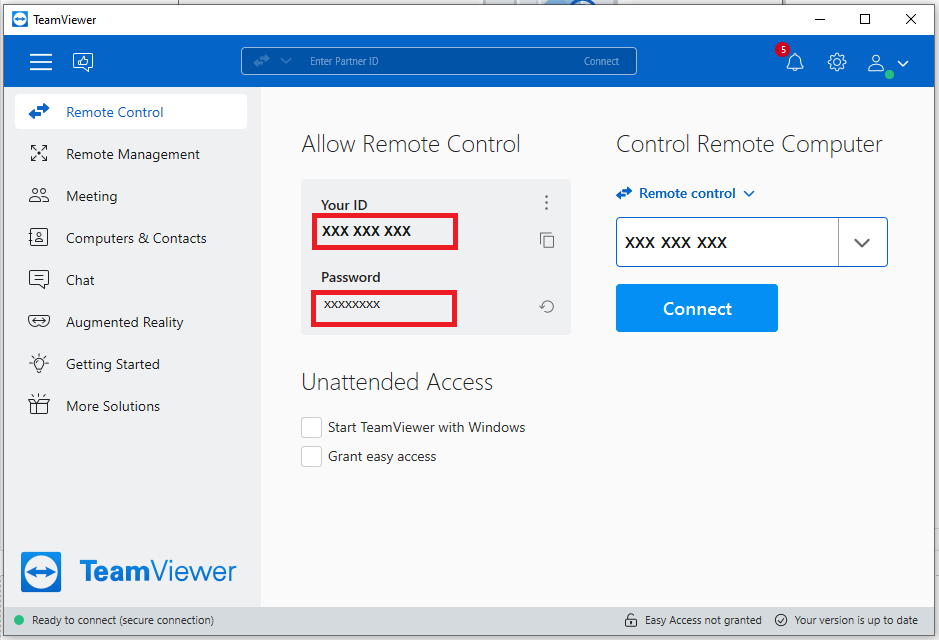
Teamviewer will successfully connect to the remote computer.
TeamViewer Alternatives
While TeamViewer is a market leader, you may want to consider alternatives depending on your needs:
- AnyDesk: Lightweight and very fast, with a similar interface.
- Chrome Remote Desktop: Free and easy to set up using your Google account.
- RemotePC: Secure and affordable remote access solution for individuals and businesses.
Each tool has its pros and cons, but TeamViewer stands out for its balance of power, usability, and security.
TeamViewer remains one of the best remote desktop tools available today. Its blend of ease of use, high performance, and enterprise-grade security makes it an excellent choice for both individual users and businesses. Whether you’re troubleshooting issues, accessing your work PC from home, or conducting online presentations, TeamViewer makes the process seamless.
While the free version has some limitations, especially for professional use, it’s more than sufficient for personal tasks. For businesses, the software offers a wide range of tools that justify the cost. If you need a reliable, secure, and powerful solution for remote connectivity, TeamViewer is well worth considering.
Leave a Reply